1
  2
  3
  4
  5
  6
  7
  8
  9
 10
 11
 12
 13
 14
 15
 16
 17
 18
 19
 20
 21
 22
 23
 24
 25
 26
 27
 28
 29
 30
 31
 32
 33
 34
 35
 36
 37
 38
 39
 40
 41
 42
 43
 44
 45
 46
 47
 48
 49
 50
 51
 52
 53
 54
 55
 56
 57
 58
 59
 60
 61
 62
 63
 64
 65
 66
 67
 68
 69
 70
 71
 72
 73
 74
 75
 76
 77
 78
 79
 80
 81
 82
 83
 84
 85
 86
 87
 88
 89
 90
 91
 92
 93
 94
 95
 96
 97
 98
 99
100
101
102
103
104
105
106
107
108
109
110
111
112
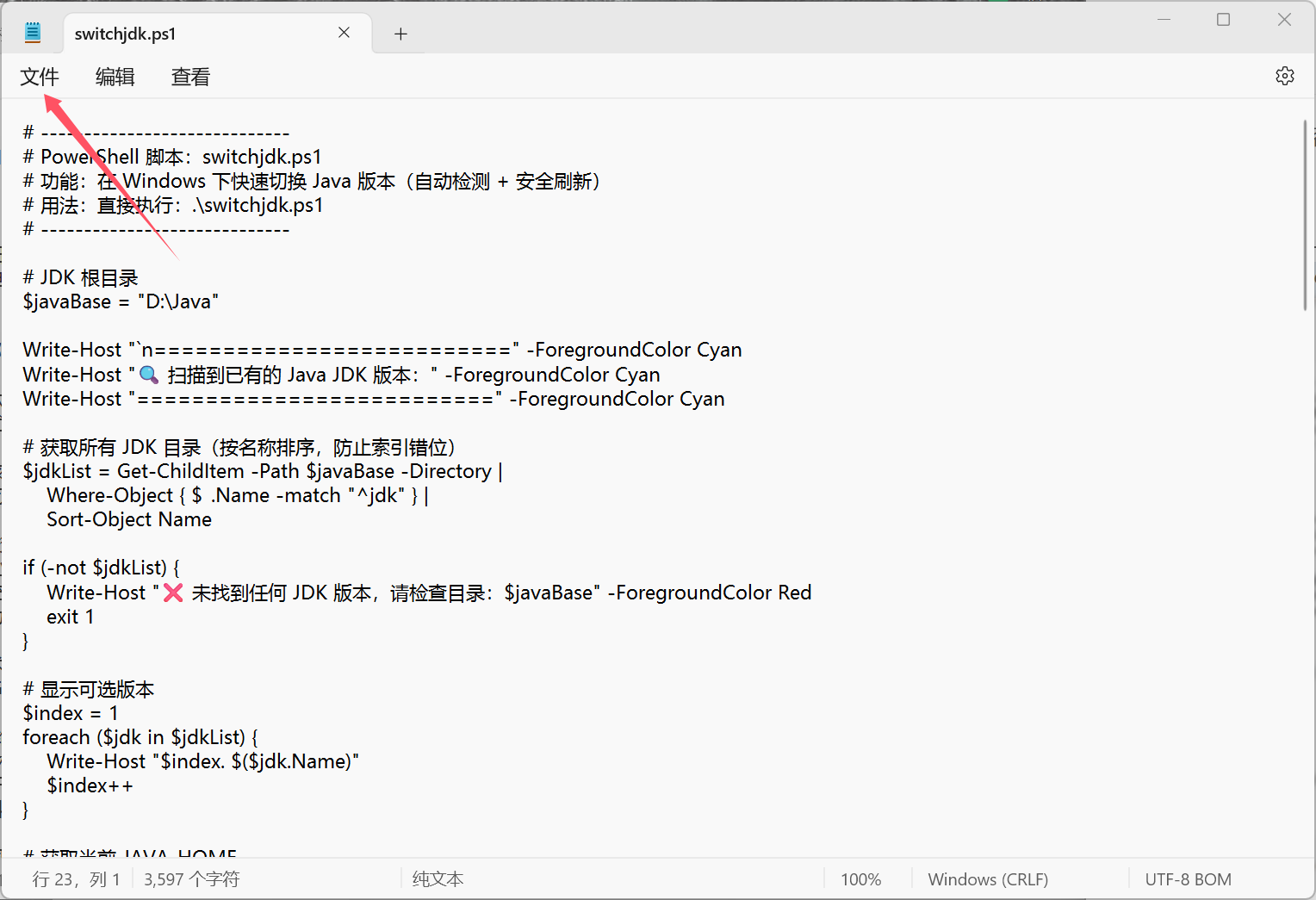
| # -----------------------------
# PowerShell 脚本:switchjdk.ps1
# 功能:在 Windows 下快速切换 Java 版本(自动检测 + 安全刷新)
# 用法: PowerShell 管理员模式下直接执行:.\switchjdk.ps1
# -----------------------------
# JDK 根目录(根据自己的 JDK 安装路径调整)
$javaBase = "D:\Java"
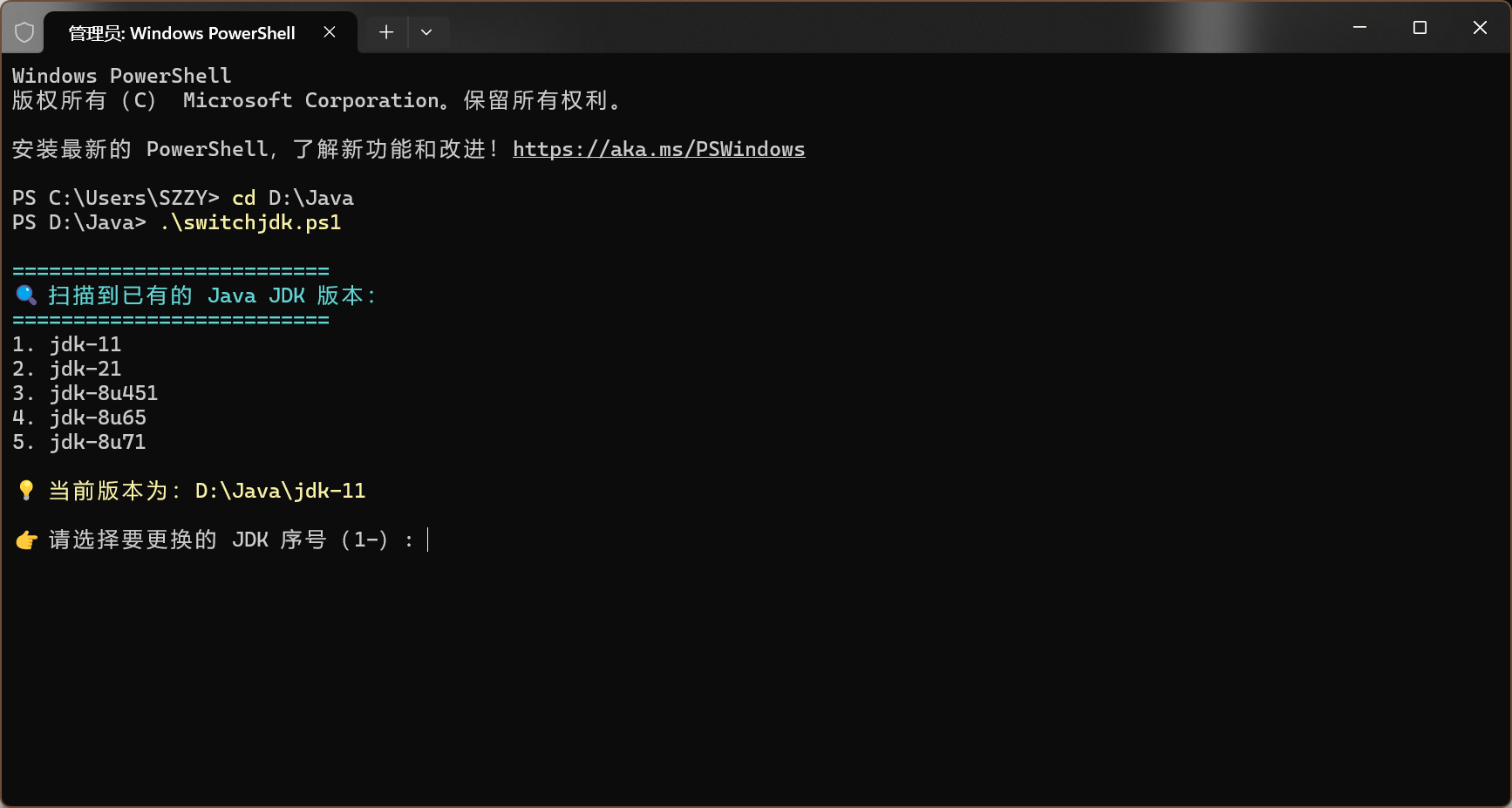
Write-Host "`n==========================" -ForegroundColor Cyan
Write-Host "🔍 扫描到已有的 Java JDK 版本:" -ForegroundColor Cyan
Write-Host "==========================" -ForegroundColor Cyan
# 获取所有 JDK 目录(按名称排序,防止索引错位)
$jdkList = Get-ChildItem -Path $javaBase -Directory |
Where-Object { $_.Name -match "^jdk" } |
Sort-Object Name
if (-not $jdkList) {
Write-Host "❌ 未找到任何 JDK 版本,请检查目录:$javaBase" -ForegroundColor Red
exit 1
}
# 显示可选版本
$index = 1
foreach ($jdk in $jdkList) {
Write-Host "$index. $($jdk.Name)"
$index++
}
# 获取当前 JAVA_HOME
$currentJavaHome = [Environment]::GetEnvironmentVariable("JAVA_HOME", "Machine")
if ($currentJavaHome) {
Write-Host "`n💡 当前版本为:$currentJavaHome" -ForegroundColor Yellow
} else {
Write-Host "`n⚠️ 当前系统未设置 JAVA_HOME" -ForegroundColor Yellow
}
# 提示用户选择版本
$choice = Read-Host "`n👉 请选择要更换的 JDK 序号(1-${jdkList.Count})"
if (-not ($choice -as [int]) -or $choice -lt 1 -or $choice -gt $jdkList.Count) {
Write-Host "❌ 无效选择,操作已取消。" -ForegroundColor Red
exit 1
}
# 精确取选中版本
$selectedJdk = $jdkList | Sort-Object Name | Select-Object -Index ($choice - 1)
$javaHome = $selectedJdk.FullName
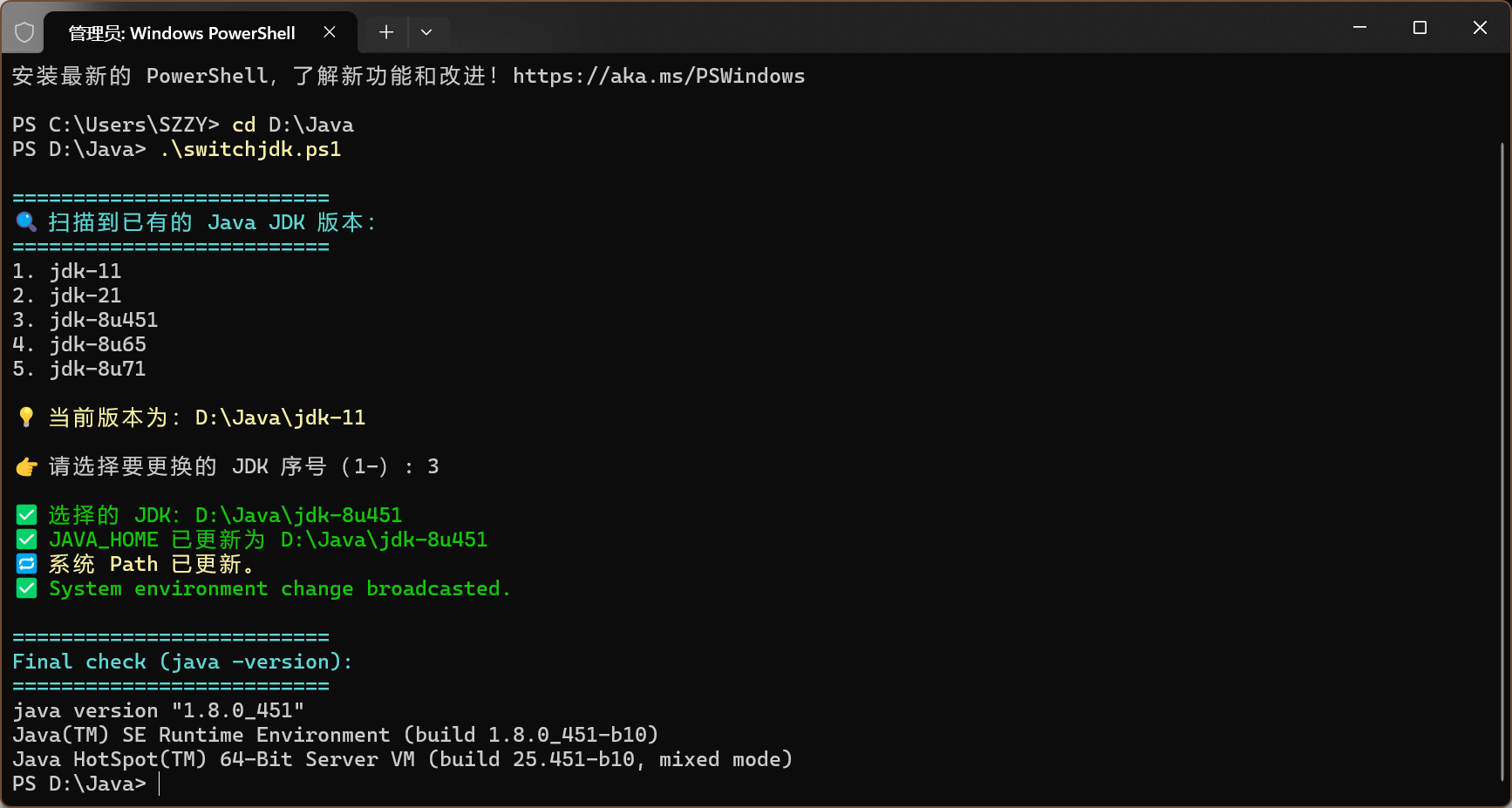
Write-Host "`n✅ 选择的 JDK:$javaHome" -ForegroundColor Green
# 修改 JAVA_HOME(系统与用户级)
[Environment]::SetEnvironmentVariable("JAVA_HOME", $javaHome, "User")
[Environment]::SetEnvironmentVariable("JAVA_HOME", $javaHome, "Machine")
Write-Host "✅ JAVA_HOME 已更新为 $javaHome" -ForegroundColor Green
# 更新 Path:移除旧 JDK/bin,添加新 JDK/bin
$oldPath = [Environment]::GetEnvironmentVariable("Path", "Machine")
$newPathParts = $oldPath -split ';' | Where-Object {
($_ -notmatch "Java\\jdk") -and ($_ -notmatch "Java\\jre")
}
$newPath = ($newPathParts + "$javaHome\bin") -join ';'
[Environment]::SetEnvironmentVariable("Path", $newPath, "Machine")
Write-Host "🔁 系统 Path 已更新。" -ForegroundColor Yellow
# 通知系统环境变量更新(立即生效)
try {
$signature = @"
[DllImport("user32.dll", SetLastError=true, CharSet=CharSet.Auto)]
public static extern IntPtr SendMessageTimeout(
IntPtr hWnd, uint Msg, UIntPtr wParam, string lParam,
uint fuFlags, uint uTimeout, out UIntPtr lpdwResult);
"@
Add-Type -MemberDefinition $signature -Name "NativeMethods" -Namespace "WinAPI"
$HWND_BROADCAST = [IntPtr]0xffff
$WM_SETTINGCHANGE = 0x1A
$result = [UIntPtr]::Zero
[void][WinAPI.NativeMethods]::SendMessageTimeout(
$HWND_BROADCAST, $WM_SETTINGCHANGE,
[UIntPtr]::Zero, "Environment",
0, 1000, [ref]$result
)
Write-Host "✅ System environment change broadcasted." -ForegroundColor Green
} catch {
Write-Host "⚠️ Broadcast failed (但环境变量已更新)" -ForegroundColor Yellow
}
# 更新当前会话环境变量
$env:JAVA_HOME = $javaHome
$env:Path = $newPath
# ⚙️ 清除 PowerShell 命令缓存,确保生效新版本
try {
if (Get-Command java -ErrorAction SilentlyContinue) {
Remove-Item -Path Function:\java -ErrorAction SilentlyContinue
Remove-Item -Path Alias:\java -ErrorAction SilentlyContinue
}
# 清除缓存路径
$env:Path = $newPath
[System.Environment]::SetEnvironmentVariable("Path", $newPath, "Process")
# 强制重新定位 java 可执行路径
$null = & where.exe java
} catch {
Write-Host "⚠️ PowerShell 缓存刷新失败,但环境变量已更新" -ForegroundColor Yellow
}
Write-Host "`n==========================" -ForegroundColor Cyan
Write-Host "Final check (java -version):" -ForegroundColor Cyan
Write-Host "==========================" -ForegroundColor Cyan
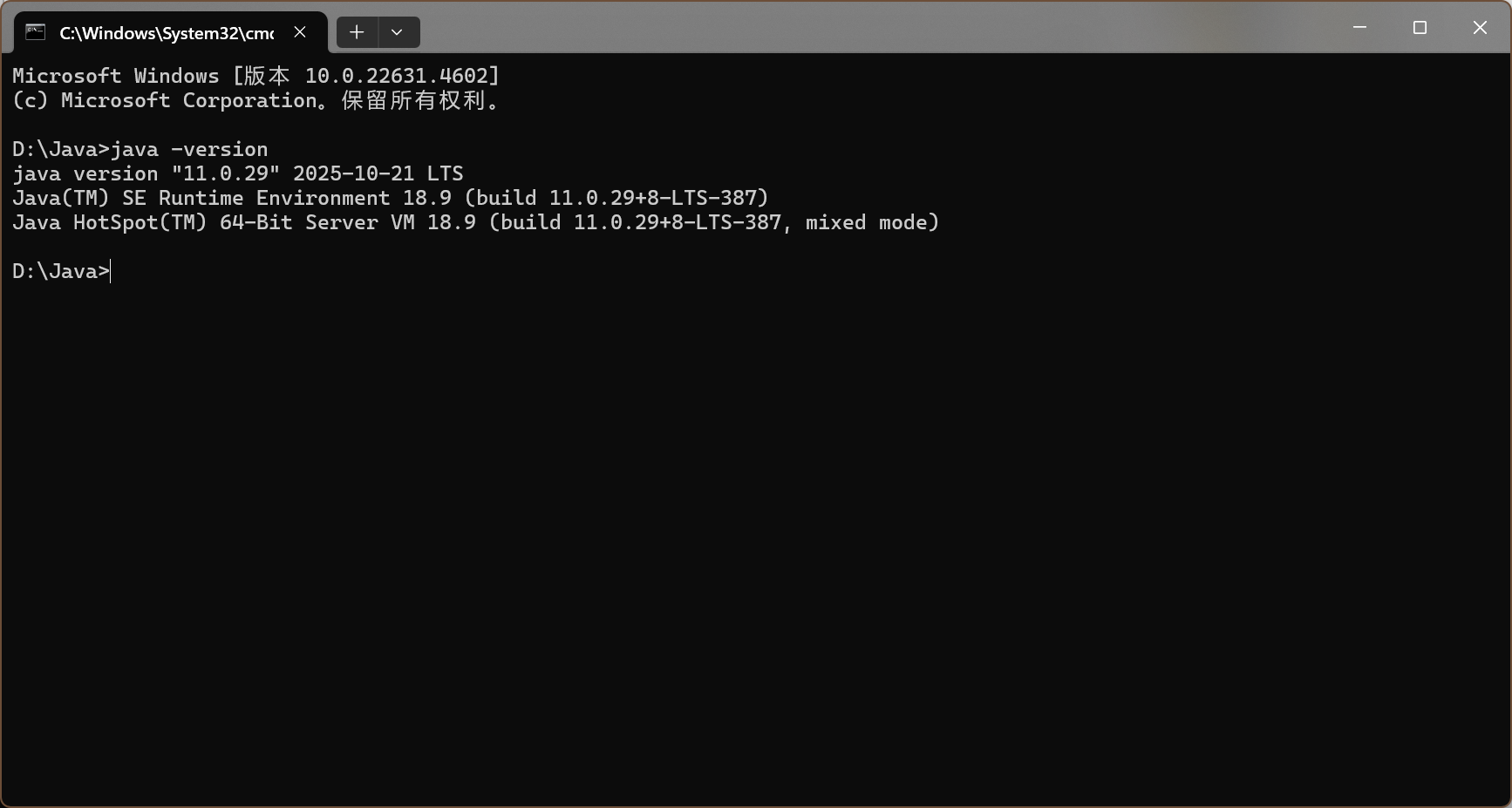
& java -version
|